If you have both UK property and self-employment income sources, it is best to have separate VT Transaction+ data files for UK property and for self-employment, unless you use the same bank account for both, or you are VAT registered. The different options are given below. If you are already doing one of these options, it is best to stick with that setup regardless.
Option 1: Use separate VT Transaction+ files for UK property and self-employment
This is the simpler option, so long as you don't use the same bank account for UK property and self-employment, or you are not VAT registered. Otherwise, it is better to use Option 2.
Create a new VT Transaction+ file for property
1.Select File > New Company.
2.Enter/select the following details:
•Company/business name: Enter the name of the business
•Chart of accounts template: Select UK property
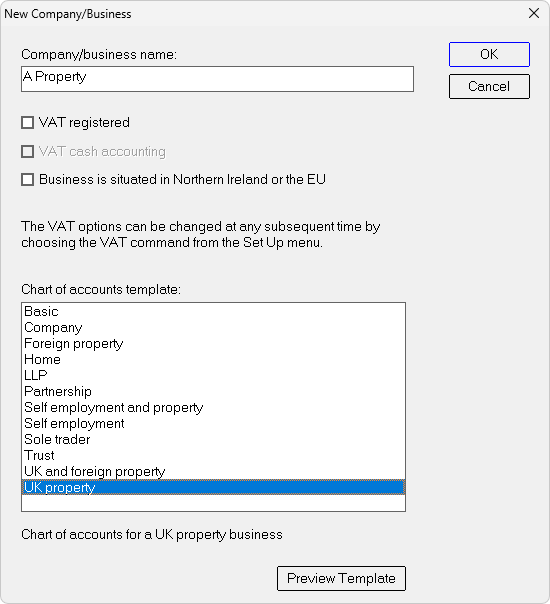
3.Click OK to save the file to your PC. This creates a file with property accounts, which are automatically assigned to the relevant tax categories for UK property. Enter transactions in the normal way.
Option 2: Use the same VT Transaction+ file for both self-employment and UK property
This option is best if you have the same bank account for UK property and self-employment, or you are VAT registered.
Create UK property accounts in a self-employment file
(If you have already created property accounts, skip this section and follow the steps from Assign property accounts to tax categories onwards.)
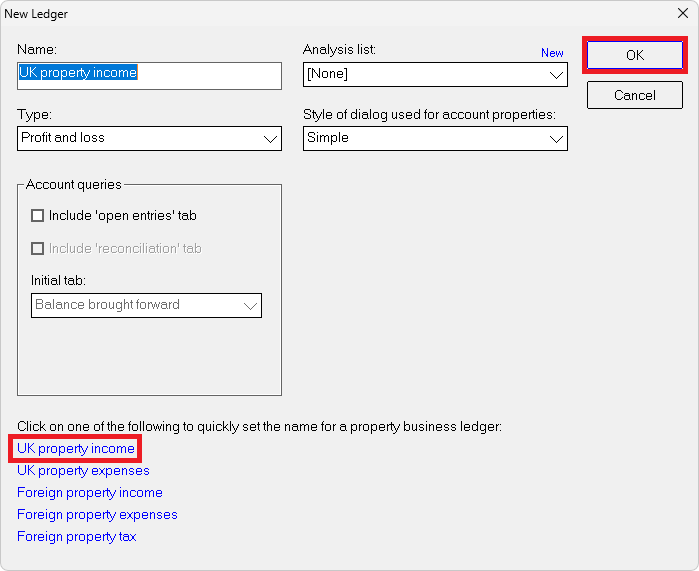
1.Select Set Up > Ledgers > New > [Click on UK property income on the bottom left] > OK.
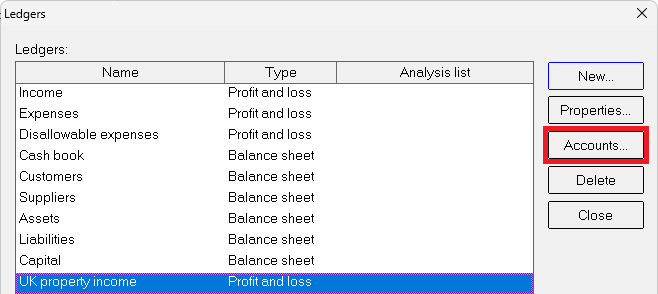
2.Scroll down to the newly created ledger then select Accounts:
3.Select New:

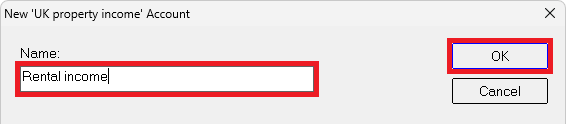
4.Enter the name of the account and click OK. Repeat steps 3. and 4. for each new account that you need.
5.Repeat steps 1. to 4. for the UK property expenses ledger.
Assign UK property accounts to tax categories
1.Select MTD > UK Property quarterly update > Assign (or exclude) accounts to tax categories.
2.Click on No to the message asking if you want to display the Set up>Ledgers dialog.
3.Under Accounts to be listed, select All accounts
4.For each property account on the left, select the appropriate tax category on the right (or click Auto-Assign, which will automatically find and assign the related tax category if the names are similar) and click OK.

Note: Any accounts showing as 'Excluded' will have been assigned to self-employment or foreign property categories and are therefore excluded from UK property categories.
Exclude UK property accounts from self-employment tax categories
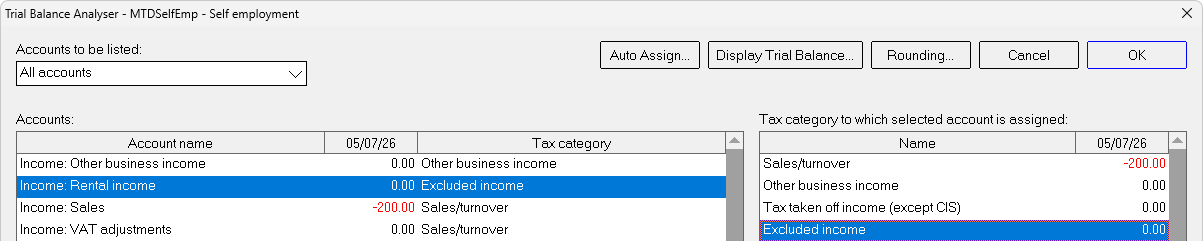
1.Select MTD > Self-employment quarterly update > Assign (or exclude) accounts to tax categories.
2.Under Accounts to be listed, select All accounts
3.For each UK property account on the left, select Excluded income or Excluded expense on the right and click OK.
Jointly-owned UK property
Regardless of the method used above, if any of your UK properties are jointly-owned, your share of income and expenses from jointly-owned UK property should be included in the figures for your total UK property quarterly update. See Jointly-owned UK property.
